
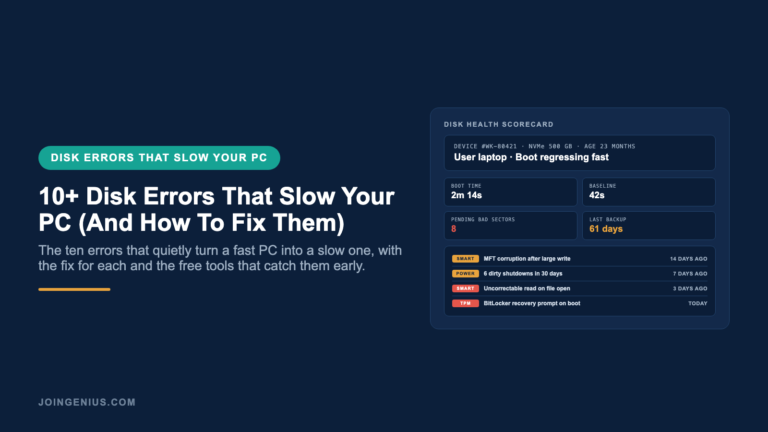
Most slow PCs are not CPU problems. They are disk problems that have been getting worse for months, hidden behind generic Windows error toasts and increasingly long boot times. By the time a user files a ticket (or asks a friend), the drive has been serving reads at a fraction of its rated speed and the SMART log has been piling up warnings and the backup window hit on a weekend nobody looked at. This post walks through the 10 disk errors that most often cause the slowdown and the fix pattern that system administrators use before reaching for a full reinstall.
Why Small Disk Errors Compound Into A Slow PC
Disk errors rarely announce themselves. A bad sector gets remapped silently, a dirty shutdown triggers a quiet journal replay, and a firmware bug drops write throughput by 40 percent without a toast to the user.
The impact is measurable. The HP 2026 AI Device Upgrades Survey of 1,000 US employees found 80 percent reported device performance friction including slower processing speeds and unexpected interruptions. Disk errors sit under most of it.
Teams with real technical onboarding documentation for IT grab a day-one SMART log snapshot per device, so the comparison point exists six months later.
| Error Class | Typical Symptom | Fix Layer | Time To Act |
|---|---|---|---|
| File System Corruption | Long boot times, chkdsk at startup | OS utilities or Check File System | Within a week |
| Physical Media Wear | SMART warnings, read timeouts | Backup first, then surface scan | Immediately |
| Partition Table Damage | Boot loop, missing drive letter | Partition manager, recovery boot | Before any writes |
| Encryption Lock | BitLocker recovery screen | Recovery key or reimage path | Within 24 hours |
Backblaze Drive Stats for Q3 2025 (covering 328,348 drives) put fleet-wide quarterly annualized failure rate at 1.55 percent, with lifetime AFR at 1.31 percent. In a 50-PC team, roughly one physical drive fails per quarter.
File System Errors That Stack Up Over Time
File system errors are the first layer to go wrong. They are also the first layer most users and admins can fix without specialized hardware.
1. NTFS Master File Table Corruption
The Master File Table tracks every file on an NTFS volume. When it corrupts from a crash during a large write, Windows adds extra lookups for routine operations and boot time rises 30 seconds or more.
Fix: run chkdsk /f /r from an elevated prompt (or the Check File System utility in a disk manager) and reboot. On a drive with other signs of trouble, image it first so the in-place repair does not compound a hardware fault.
2. Dirty Shutdown Journal Backlog
Windows shuts down from a power event and the NTFS journal holds pending operations that must replay on next boot. A single dirty shutdown clears in seconds. A pattern of them (common on laptops with failing batteries) leaves a backlog that slows every boot by 20 to 40 seconds.
Fix: check Event Viewer for repeated Kernel-Power 41 events and address the root cause. A one-time chkdsk clears the current backlog, but if the shutdowns continue the backlog rebuilds.
3. Fragmented Large-File Allocations
Modern SSDs do not care about fragmentation. Mechanical drives still do, and so do NTFS volumes filled past 85 percent repeatedly. Large contiguous reads (video editing scratch files or VM disk images) take twice as long once the allocator starts splitting them across the volume.
Fix: on mechanical drives, run Optimize and Defragment Drives. On SSDs, do not defragment (it costs write cycles for zero benefit). Instead, free 15 percent of the volume so the allocator has room to write contiguous extents.
Physical Media Errors That Hide In The SMART Log
Physical media errors do not show up as popups. They show up as SMART attribute changes in a log that nobody opens unless the drive is already acting up.
4. Pending Bad Sectors (SMART Attribute 197)
Pending Sector Count means the drive has found sectors that could not be read correctly but has not yet decided if they are permanently bad. A rising count is the clearest early warning of a failing drive.
Fix: run a Surface Test to force the drive to attempt reads on every sector. Confirmed bad sectors move to the Reallocated count (SMART #5) and the OS stops trying to read them. A rising Reallocated count means plan a replacement.
5. Uncorrectable Read Errors
Uncorrectable Error Count (SMART #187) is the number of reads the drive could not recover even after internal error correction. Each one is potentially a corrupt file, which the user sees as Explorer hangs and random app crashes on specific files.
Fix: image the drive immediately to a healthy target, then verify the image against checksums. Once the uncorrectable count climbs above zero, the drive is a replacement candidate.
6. SSD TBW Exhaustion And Write Amplification
Every SSD has a Total Bytes Written rating. Consumer drives commonly ship with 150 to 600 TBW. A video editor or a developer running local VMs can hit 200 GB of writes per day, which makes a 300 TBW drive last four years instead of ten.
Fix: check the vendor’s health tool for TBW used and remaining endurance. Once remaining endurance drops below 10 percent, the drive starts remapping aggressively and write latency rises. Plan replacement before the drive hits read-only mode.
7. Drive Firmware Bugs
A specific firmware revision shipped bad. Samsung 970 EVO owners saw it and Intel 660p owners saw it and multiple enterprise models have hit the news for the same reason. The drive is physically fine but write performance drops or capacity gets misreported.
Fix: check the drive vendor’s support site for firmware updates once a quarter. A fleet of mixed drives needs a maintained spreadsheet of model plus firmware revision so the quarterly check does not miss one.
Partition And Boot Errors That Compound Startup Delay
Partition and boot errors are the final layer, and the most dangerous because they often require writing to the drive before a clone has been taken. Sequence matters more here than in the earlier layers.
8. Corrupted Partition Table
The partition table (MBR or GPT) tells Windows where each partition starts. When it corrupts from a crashed clone or a bad driver, a drive letter disappears or Windows runs chkdsk on every boot or the drive shows up as unallocated.
Fix: clone the drive first to a known-good target. Then rebuild the partition table on the clone with diskpart or a partition manager’s recovery tool. Never run partition repair in place without a clone.
9. MBR GPT Mismatch After Clone
A clone from MBR to GPT (or vice versa) can leave the partition table in a mixed state. The clone finishes but Windows refuses to boot from the new drive, and the error message is a generic 0xc000000f.
Fix: boot from Windows recovery media and run bootrec /fixmbr followed by bootrec /rebuildbcd. If the target is GPT, the boot partition needs to be EFI formatted (FAT32, 100 MB). A clone utility with partition-type awareness handles this automatically.
10. BitLocker Recovery Loop
After a disk error or a firmware update, BitLocker sometimes decides the drive is in an untrusted state and demands the recovery key on every boot. Without the key, the drive is inaccessible.
Fix: pull the recovery key from the user’s Microsoft account or (for managed fleets that onboard distributed contractors through Entra ID) the device record in the admin portal. Suspend BitLocker, run the disk repair, then resume BitLocker.
The Toolkit That Handles Most Of These In One Place
Most of these errors share a short list of fixes: a file system integrity pass and a surface scan for bad sectors and a clone to a safe target before any destructive repair runs on the source.
Teams that do PC maintenance regularly centralize on one or two tools for the first pass. MiniTool Partition Wizard is a long-running Windows option with a free tier that covers the baseline.
The three features that matter are Check File System for the integrity pass and Surface Test for the bad-sector scan and Copy Disk for migrating a failing drive to a new HDD or SSD without reinstalling Windows.
Copy Disk matters most in a failing-drive scenario. It clones a disk sector by sector to a new target, so the OS install and application data and user profiles come across intact. No full Windows setup needed after a drive swap.
Honest caveats on fit. MiniTool Partition Wizard is Windows only, so Mac and Linux fleets need a different tool. The free edition covers most individual use, but server workflows move to the Pro or Server editions. Copy Disk also needs a target drive at least as large as the used space on the source.
The Veeam 2025 Ransomware Trends report (1,300 organizations, 900 of them hit) found only 10 percent of affected orgs recovered more than 90 percent of their data, while 57 percent recovered less than half. The gap is almost always a backup that failed silently or a clone nobody tested.
Conclusion: Error Count Is A Leading Indicator
A PC that is getting slower is accumulating errors in a log nobody reads. The signal was there in week one. Ignoring it does not make it go away. It moves the fix window from ten minutes of chkdsk to eight hours of data recovery.
The move is to make disk health a scheduled check, not a reaction. Monthly SMART snapshot. Quarterly firmware check. Biannual clone verification. A documented replacement threshold tied to Reallocated sector count. If the team running this work also needs to hire for the roles that keep the fleet healthy, start with Genius.